Use the Projects module to change the current activity
Sometimes it is necessary to change the activity workflow task to a different one. For example, if a user advances the workflow and then realizes there was something else they needed to do, or changes were made and previous editors need to review them.
 Requirements
- To create, view, update, and delete workflows you must either be an Administrator, the project Owner, or have the following permissions:
- Create, read, update, and delete permissions to the
 Projects module.
 - For the Projects module, your user account must be listed under the following Property: can_initiate_assignment.
- If you are an administrator, refer to Allow users to create project assignments and workflows.
- Create, read, update, and delete permissions to the
- If you selected Create Multiple Assignments in the template in use, you will not be able to change the current activity in a workflow.
- You can cancel the workflow and edit the template so that multiple assignments are not created. Follow the steps in: Customize Activities and Transitions for a topic workflow template.
- You can also start a new workflow based on a template where multiple assignments are not created.

 Tips and tricks
- You can also access the Change active assignment in the
 Workflows module on the Projects tab. Follow the steps in: Use the Workflows module to change the current activity.
 - The Change active assignment option is only available for workflows that have a State of Executing.
To use the Projects module to change the current activity:
-
Click Projects.
-
On the Project Management tab, all projects in your organization are listed. To find a specific project, you can:
- Filter the list of available projects by words in the project name. In the Search text box, enter a keyword, and then click the magnifying glass
 .
. - Filter the list of available projects to include only those you own or are participating in. In Type, select an option to filter the list by that criteria.
- To include completed projects in the list, select Include Completed and then click the magnifying glass .
- Filter the list of available projects by words in the project name. In the Search text box, enter a keyword, and then click the magnifying glass
-
To open one project, select the project and double-click it.
Note: You can also open a project by:
- Right-clicking the project and then selecting Open.
- Clicking
 the Options menu and then selecting Open.
-
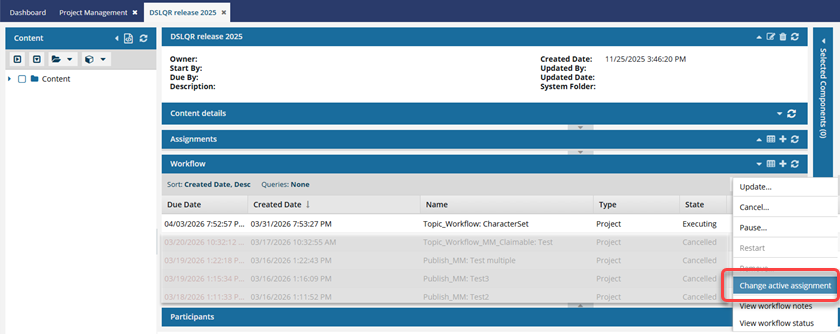
In the Workflow pane, select the workflow you want to change.
 The workflow must have a State of Executing.
 -
In the workflow's row, click the Options menu and select Change active assignment.
-
On the Transitions screen,
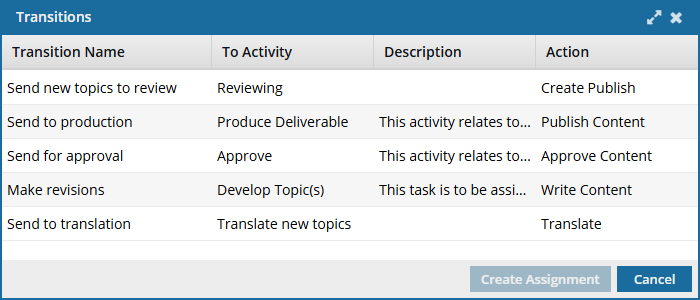
- Select the transition that moves the workflow to the activity you want to be current.
- Click Create assignment.
-
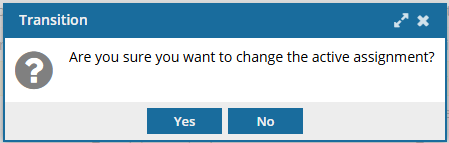
Confirm your change on the Transitions screen by clicking Yes.
 Results:
 - The State of the current assignment is set to Completed.
- The workflow moves to the selected transition. For example, you might see a notification that a new assignment is created.