Move project components
To organize content to meet the needs of your organization, you can remove components from one folder and add them to another folder.
 A content owner or administrator can set permissions to deny access to components or folders. If your permissions to content have been blocked, and you are not an administrator, you cannot use the Move option in a project's Content pane.

 Before you begin
- You can only move components using drag and drop.
- There are no options to move components using the Options menu or in the project Selected Components panel.
- Moving a project component within project folders does not alter where the component is stored in the Components browser.
To move project components:
-
Click
 Projects.
-
On the Project Management tab, all projects in your organization are listed. To find a specific project, you can:
- Filter the list of available projects by words in the project name. In the Search text box, enter a keyword, and then click the magnifying glass
 .
. - Filter the list of available projects to include only those you own or are participating in. In Type, select an option to filter the list by that criterion.
- To include completed projects in the list, select Include Completed and then click the magnifying glass .
- Filter the list of available projects by words in the project name. In the Search text box, enter a keyword, and then click the magnifying glass
-
To open one project, select the project, and then double-click it.
 You can also open a project by:
- Right-clicking the project and then selecting Open
- Clicking
 the Options menu and then selecting Open
-
Select the component that you want to move and drag it to the new location.
To move multiple project components to a new project location.
- Select the checkbox next to an individual component that you want to move
- Hold down Shift and click the mouse to select multiple components
You can hold down Ctrl and click the mouse to select individual components.
Results:
If the location is allowed, you see
 a green plus sign when hovering over the location. For example, when you hover over a different folder.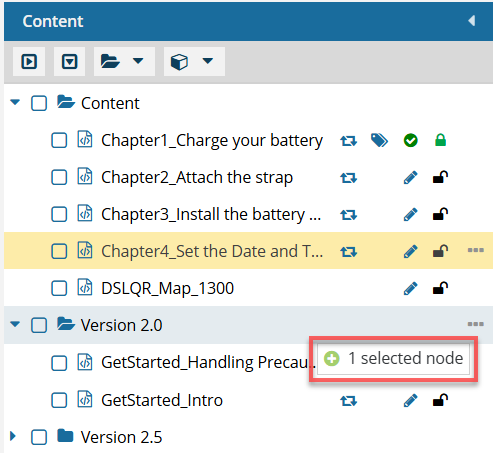
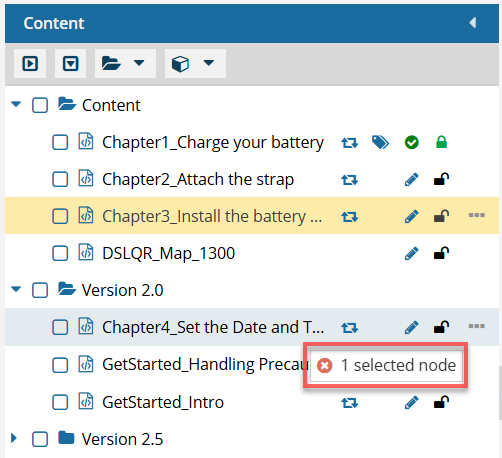
If the location is NOT allowed, you see
 a red X when hovering the location. For example, when you hover over a component, because you can't move a component into another component.